
PHOTOSHOP WORKFLOW ACTIONSImage Enhancer 3
One set for the whole edit.
Image Enhancer 3 gives you 35 Photoshop actions in six sections. New Auto Portrait actions find the people in your photo and add a masked layer only where it belongs. Tone, skin, background, sharpening and finishing are all in one set.
- Actions
- 35 in six sections
- Designed for
- Photoshop on desktop
- Inside the package
- Actions, guides & license
- License
- One person or business
Original price was: $50.00.$25.00Current price is: $25.00.
50% Off
 View larger
No images selected for this view.
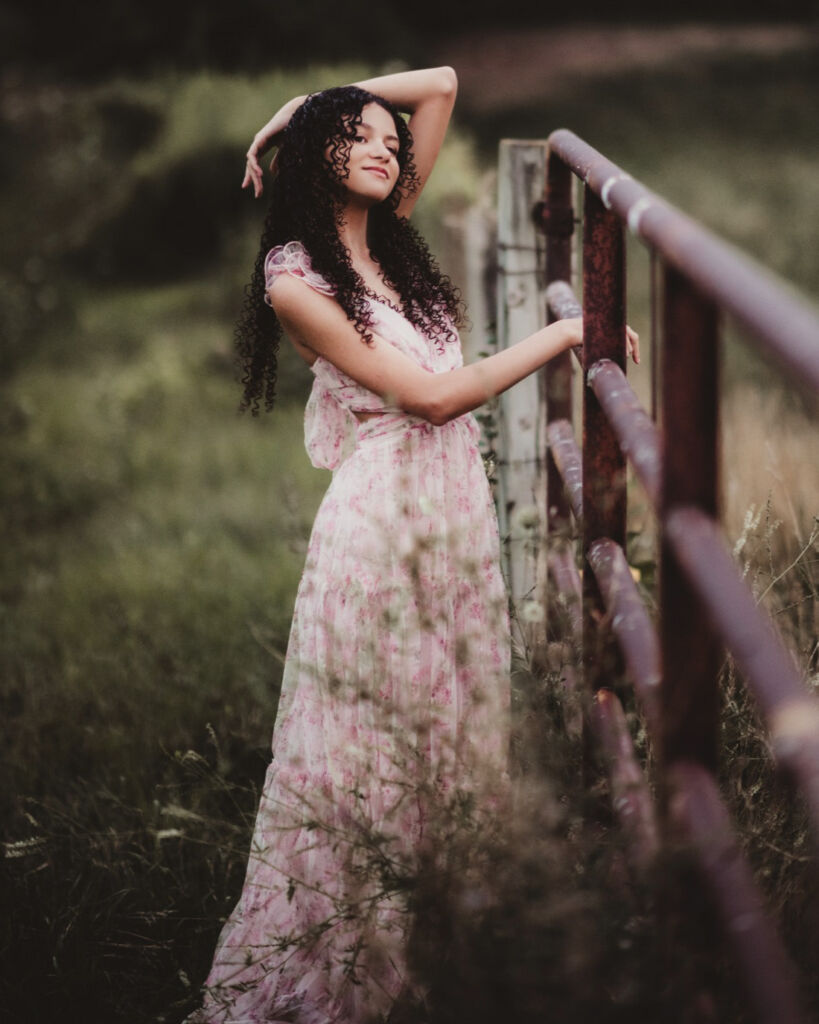
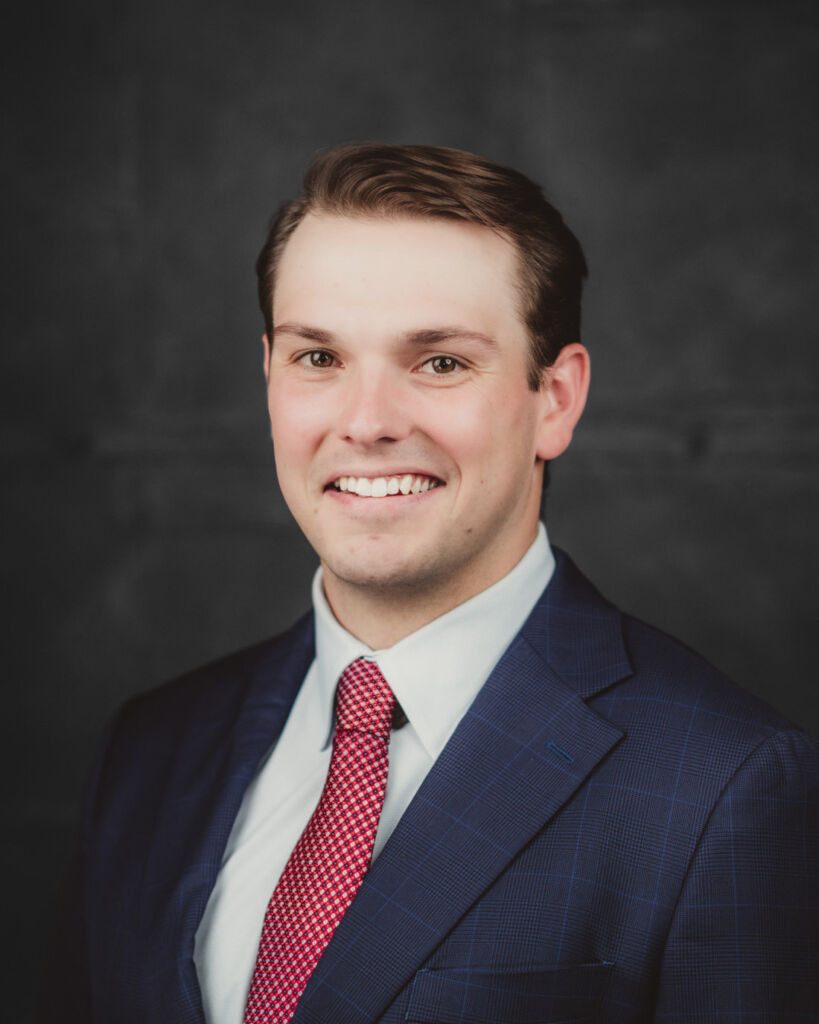
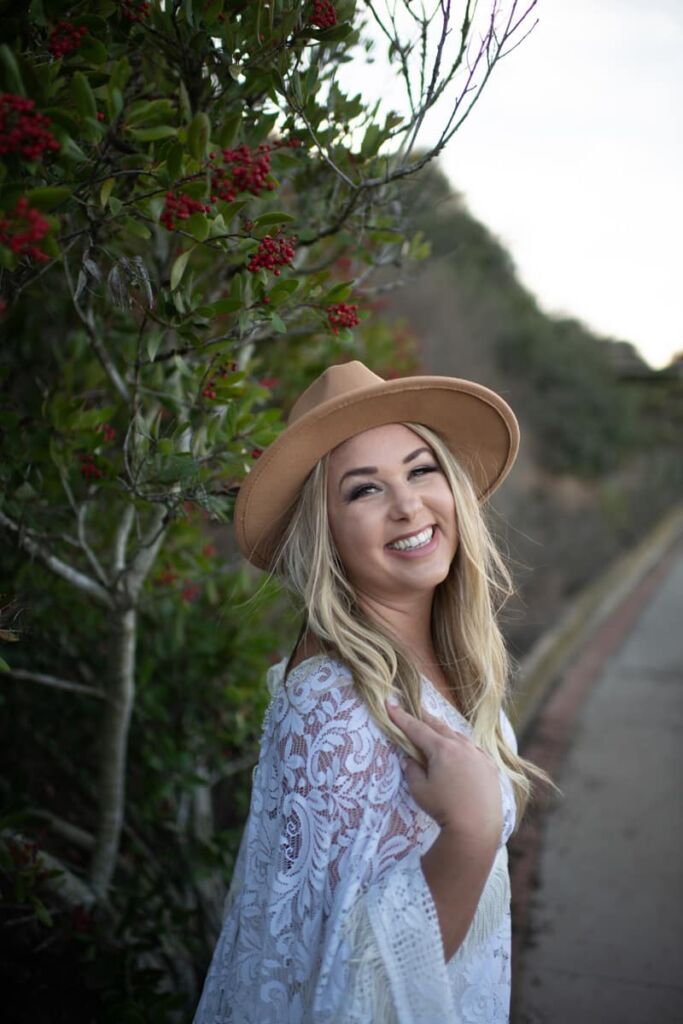
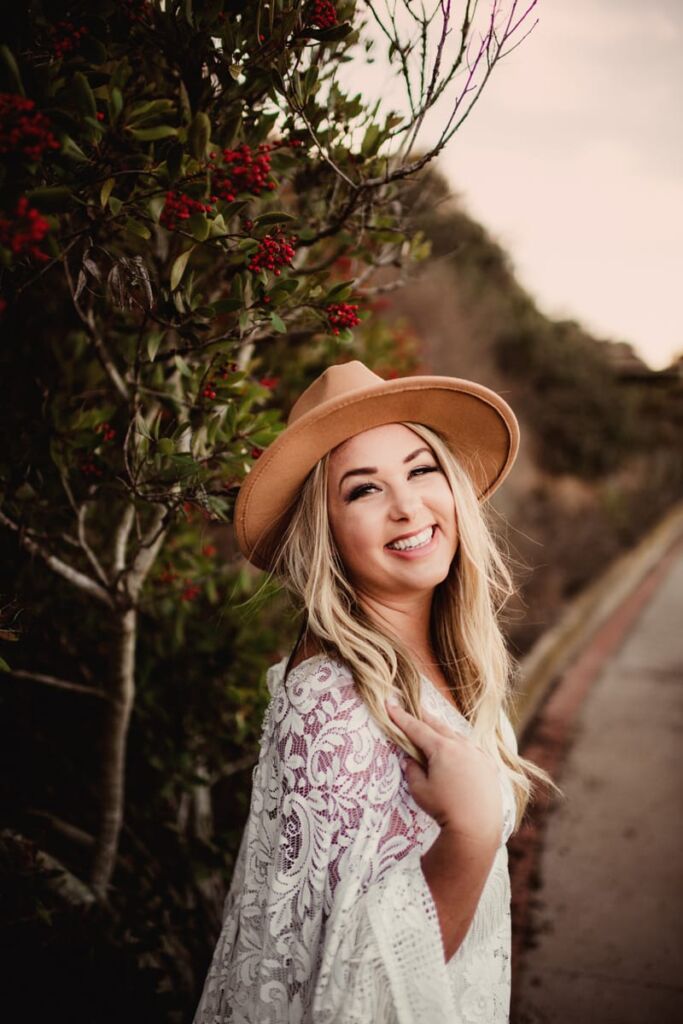
PHOTOSHOP WORKFLOW ACTIONS One set for the whole edit. Image Enhancer 3 is our newest workflow set for Photoshop. It gathers 35 actions in six sections, so you can go from your base edit to a finished photo without hunting for the next tool. New Auto Portrait actions find the people in your photo for you. They find skin, eyes, teeth, lips, brows and hair, then add a masked layer only there. They run on your computer and spend no generative credits. AI editing tools can do a lot now, and many of them take it too far. Most of them cost credits too. Sometimes a photo just needs a subtle edit, and that is why we made these actions. They give you subtle edits that are light on AI, with clean hand retouching. They are the same actions we use in our own editing every day. Sharpen Up, Finishing Polish and Frequency Separation are now part of this set, along with five finishing looks. Every action adds its own named layer, so you can lower it, paint it on or paint it off. BEFORE & AFTER Choose an image and see the edit! EXAMPLES TAKE A PEEK INSIDE Six sections and 35 actions. Open a section to see what each action does. TOP Auto Tone & Color Lift. Adds an auto levels layer at 40% opacity to balance tone and color. Use it first on a flat or dull photo. TOP Warm Bump. Adds a small warm shift to the midtones. Use it when a photo feels a little cool. TOP Clear the Haze (Paint off). Adds clarity and removes haze, at 33% opacity. Paint black on the mask where you want less of it. TOP Vibrant Up (Paint off). Adds vibrance and opens up the shadows, at 75% opacity. Paint black on the mask where you want less of it. TOP One-Click Portrait Polish (Full Size). Runs the common portrait edits in one click. It adds Skin Smooth, Skin Calm, Face Light, Eye Pop, Teeth Whitener and Hair Shine layers, each masked to its own area. Made for camera files. TOP One-Click Portrait Polish (Web Size). The same polish for files about 2000 px. TOP Auto Skin Smooth Full Size (Paint off). Softens skin texture on the skin only, at 45% opacity. Paint black on the mask to bring texture back, such as around the eyes. TOP Auto Skin Smooth Web Size (Paint off). The same skin smoothing for files about 2000 px. TOP Auto Skin Calm. Eases redness in the skin. TOP Auto Face Light. Brightens the face with a soft edge, at 70% opacity. TOP Auto Eye Pop. Adds contrast to the eyes, at 80% opacity. TOP Auto Teeth Whitener. Cuts yellow and brightens the teeth. Use it when teeth show. TOP Auto Lip Tint. Adds a touch of color to the lips. TOP Auto Brow Define. Darkens the brows a little, at 60% opacity. TOP Auto Hair Shine. Adds contrast and shine to the hair, at 70% opacity. TOP Background Melt (Paint off). Blurs everything except the people so the background softens. Paint black on the mask to bring back sharpness anywhere the blur touches your subject. TOP Frequency Separation (Full Size). Splits the photo into Blur, Texture and Tone layers so you can fix texture and color separately. Made for camera files. TOP Frequency Separation (Web Size). The same split for files about 2000 px. TOP Red Tone Calmer (Paint off). Reduces red in the photo, at 50% opacity. Paint black on the mask where you want your original color back. TOP Background Red Calmer. Reduces red in the background only. It uses Select Subject to keep your subject as it was. TOP Orange Tamer (Paint off). Pulls down an orange cast, at 50% opacity. Paint black on the mask where you want it removed. TOP Orange & Yellow Remover (Paint on). Removes orange and yellow color. It starts hidden, so paint white where you want those colors gone. TOP Muted Background. Uses Select Subject and drains some of the color from everything else, at 15% opacity. Raise the opacity for more. TOP Desaturate Background. Uses Select Subject and removes the color from everything except your subject. Lower the opacity to keep some color. TOP Desaturate (Paint on). Adds a hidden desaturate layer. Paint white where you want the color removed. TOP Soft Warm Glow. Adds a soft glow with a little warmth, at 25% opacity. Paint black on the mask where you want less glow. TOP Sharpen Up (Paint on). Adds a hidden sharpening layer. Paint white where you want more detail, such as the eyes. TOP Fix That Blur (Paint off). Sharpens the whole photo. Paint black on the mask where you want to pull the sharpening back. TOP Clear & Crisp (Flattens). Sharpens and flattens the image, so run it last on a copy. TOP Finishing Polish. Adds warmth, contrast, a matte fade and a soft polish in one group. TOP Grapefruit. A warm orange toned matte look. TOP Film Matte. A film style matte look with a gentle contrast and color boost. TOP Heavy Matte. A stronger matte look with color toning. TOP Sweetcorn. A warm toned matte look. TOP Redwood. A toned matte look with its own color layer and a Yellows layer you can adjust. WHAT YOU GET One ZIP file with four parts. The six-page installation guide. It shows how to unzip the download, prepare a flattened working copy, load the set on Mac and Windows, and refine the layers and masks each action makes. Use Image Enhancer 3 for your personal photographs and paid client work. Your license covers the person or business named on your order. We claim no rights in your photographs. Keep the action files within that person or business. One ATN file with all 35 actions in six sections. Load it through the Actions panel in Photoshop. A nine-page editing guide. It walks through a typical edit, then explains every action and how to paint it on or off. The guides are PDFs you can open on any device. COMPATIBILITY Image Enhancer 3 runs in Photoshop on desktop. The Auto Portrait actions need Photoshop 2025 (version 26.6) or newer. On Windows, update to 27.2 or newer. Every other action works in recent Photoshop CC versions. Auto Portrait uses Select People and Select Subject, which run on your computer and spend no generative credits. Start from a flattened Background layer. Save your layered master, then choose Layer > Flatten Image on a working copy before you play an action. These are finishing tools. They can’t recover lighting or detail that wasn’t captured in camera. They aren’t for Photoshop Elements or Lightroom. You’ll need your own copy of Photoshop and any Adobe plan it requires. 01 Set your basic levels first. Save or duplicate your layered master, then choose Layer > Flatten Image on the working copy. 02 In Photoshop, open Window > Actions, select an Image Enhancer 3 action and click the play icon. Play a section header first if you want directions for the actions beneath it. 03 Every action adds its own named layer. Lower its Opacity to soften it, or brush on its layer mask to paint the effect on or off. Your download includes the Start Here installation guide and the Getting the Most editing guide. Image Enhancer 3 brings 35 workflow actions to Photoshop in six sections. It starts with base tone and color, adds Auto Portrait for faces, then fixes skin, background and sharpness before a finishing action. Auto Portrait actions use Photoshop’s Select People and Select Subject to find the person in your photo. They find skin, eyes, teeth, lips, brows and hair, then add a masked layer only there. They run on your computer and spend no generative credits. If a part is not in the photo, such as teeth, the action leaves the photo unchanged. Photoshop 2025 (version 26.6) or newer. On Windows, update to 27.2 or newer. Flatten the image first so you start from one Background layer. One ZIP with four parts. They are 01 Start Here, 02 License and Digital Purchases, 03 Actions and 04 Getting the Most from Your Actions. The guides are PDFs. They are now part of Image Enhancer 3. Sharpen Up, Finishing Polish and Frequency Separation are here as actions, and the finishing looks are Grapefruit, Film Matte, Heavy Matte, Sweetcorn and Redwood. Frequency Separation comes in Full Size and Web Size versions. If you bought one of them before, you keep your download. Extract the ZIP you downloaded. In Photoshop on desktop, choose Window > Actions. Choose Load Actions from the Actions panel menu and select the ATN file in the 03 Actions folder. Step-by-step help is on Actions & Presets Help. A Paint on action starts hidden. Brush white on the layer mask to add the effect. A Paint off action starts applied. Brush black on the layer mask to take it away. If you see no change, make sure your brush and the mask are opposite colors, such as black on white. Press X to swap your colors. Every action adds its own named layer, so you can lower it or paint it away. Clear & Crisp is the exception. It sharpens and flattens the image, so run it last on a copy. No. This package contains Photoshop actions. Load its ATN file in the Actions panel in Photoshop on desktop. For Lightroom, see our Lightroom presets. Yes. Image Enhancer 1 has 32 actions for tone, facial features, paint-on color and color casts. Image Enhancer 2 has 39 actions for color effects, facial details, paint-on color, tone fixes and finishing. Save a copy of your work first. Then email [email protected] with the exact error message, the action name and your Photoshop version so we can help. You can also check Actions & Presets Help. 35 actions for Photoshop on desktop, with the Start Here, License and editing guides included. Original price was: $50.00.$25.00Current price is: $25.00.Add to cart
After payment, your order email includes a download link. Bought with an account? You can also find it in My Account → Downloads.
One set for the whole edit.
Meet Image Enhancer 3
See the edit
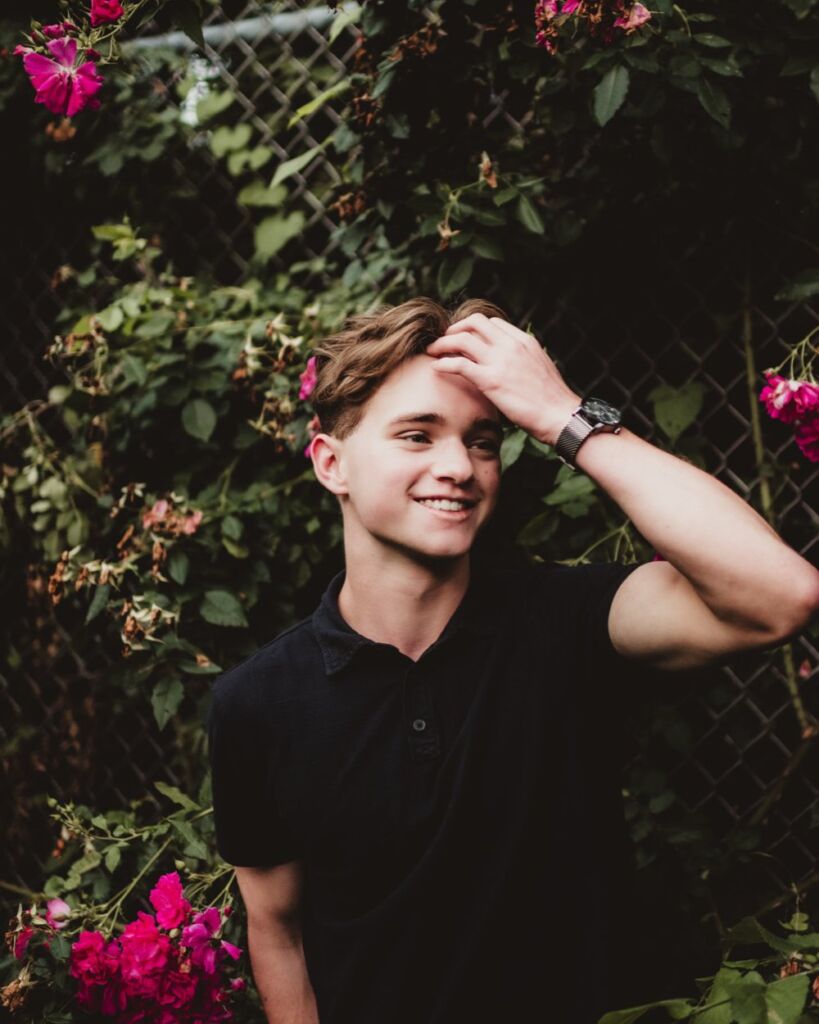
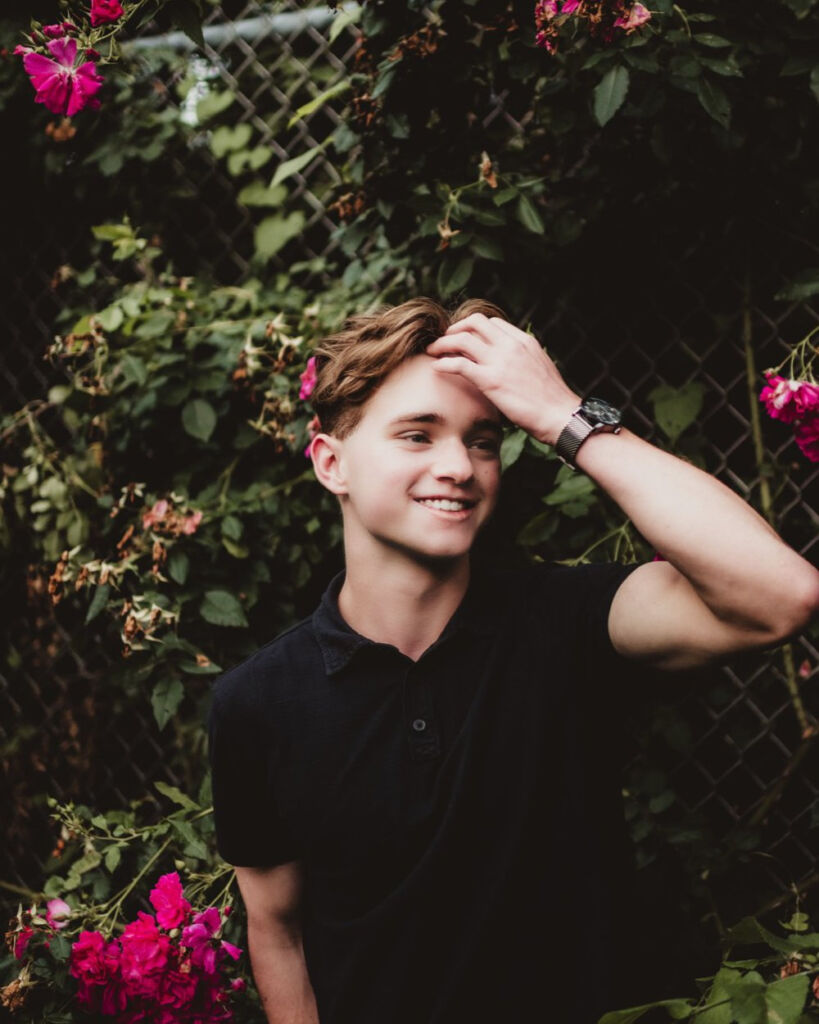 BeforeAfter
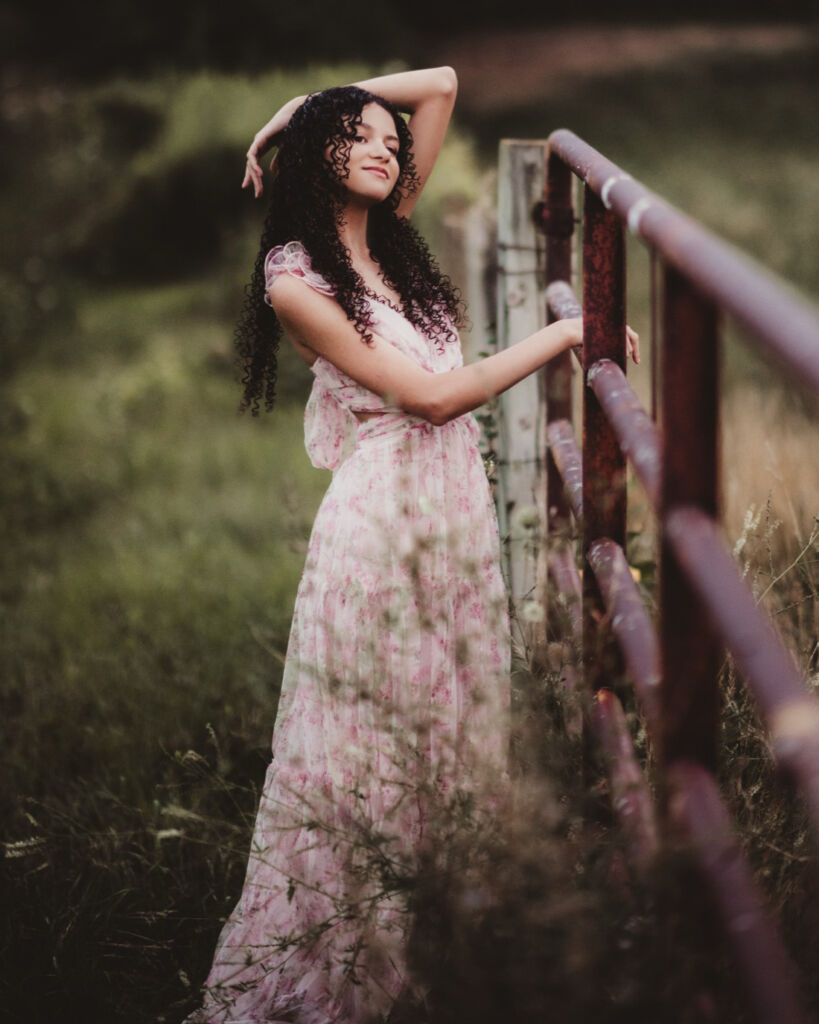
 BeforeAfter

 BeforeAfter

 BeforeAfter
 BeforeAfter
One-Click Portrait Polish
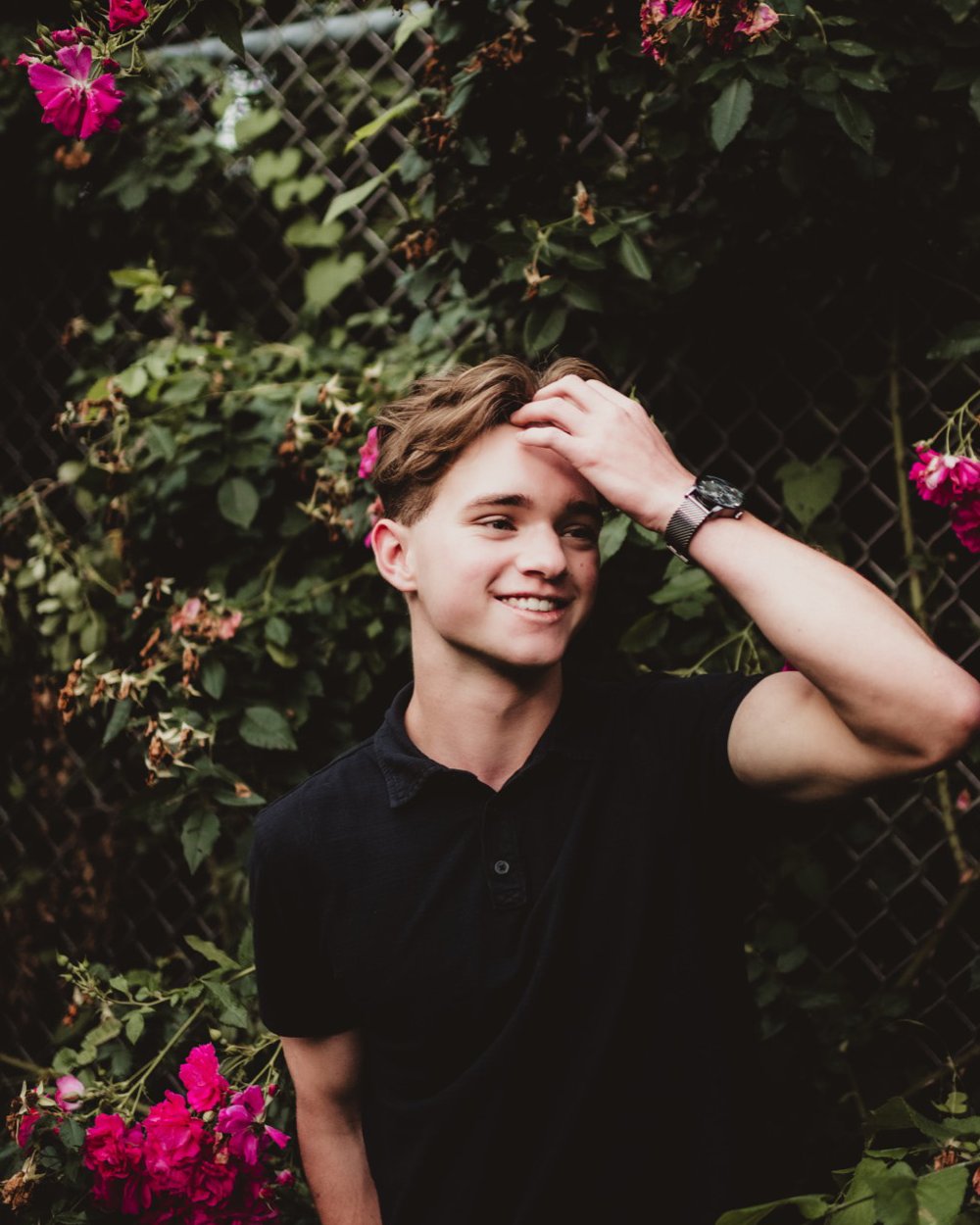
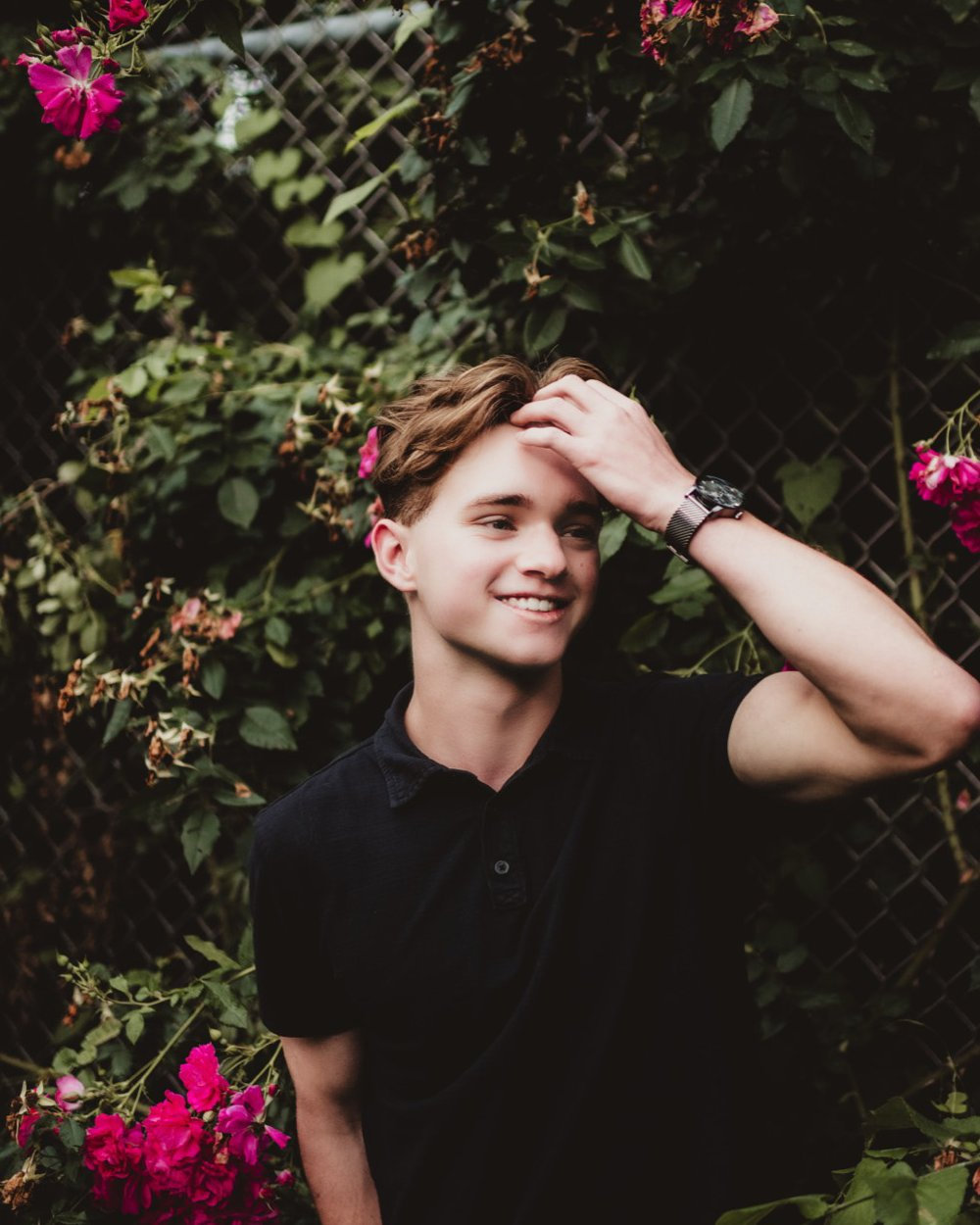
Muted Background
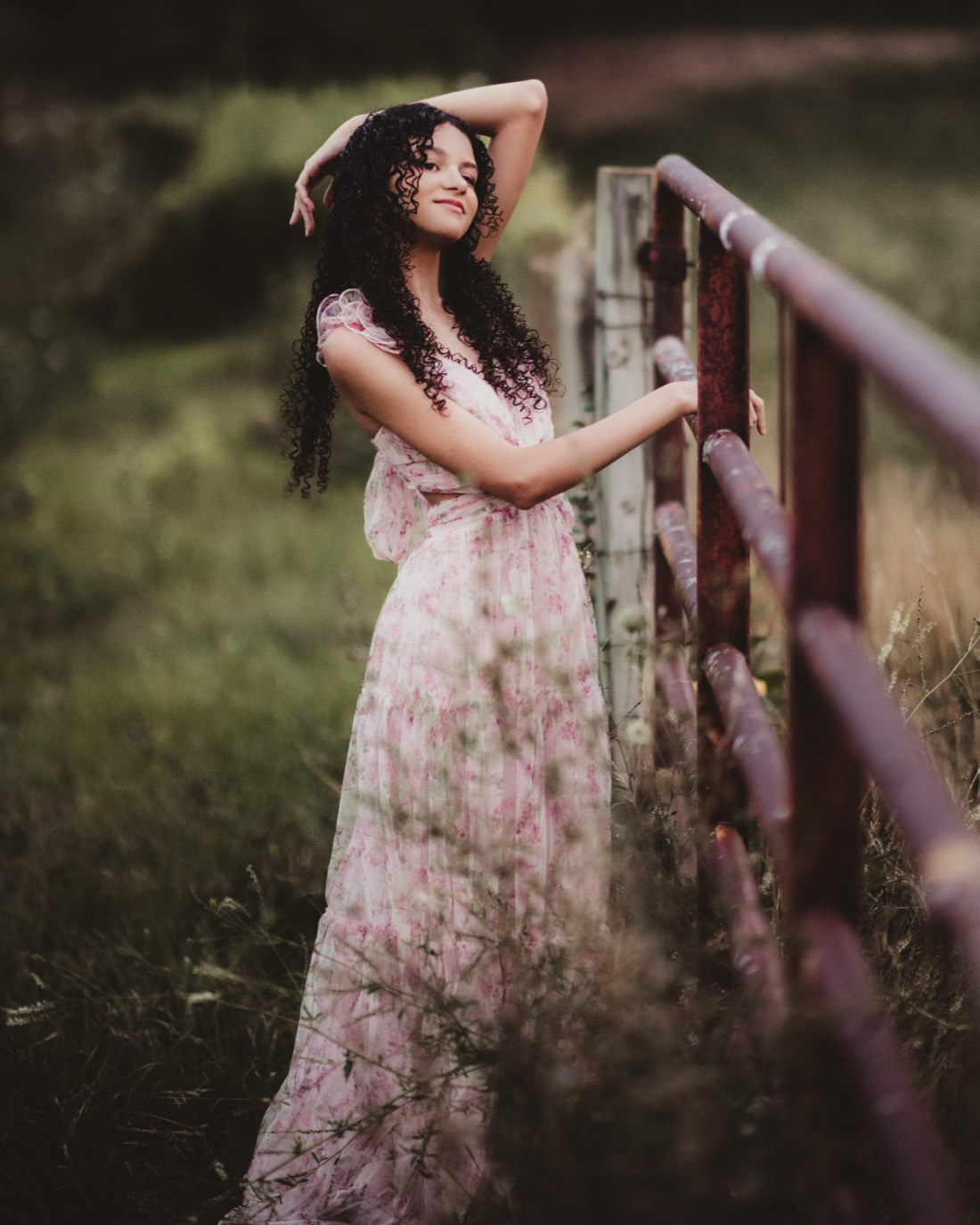
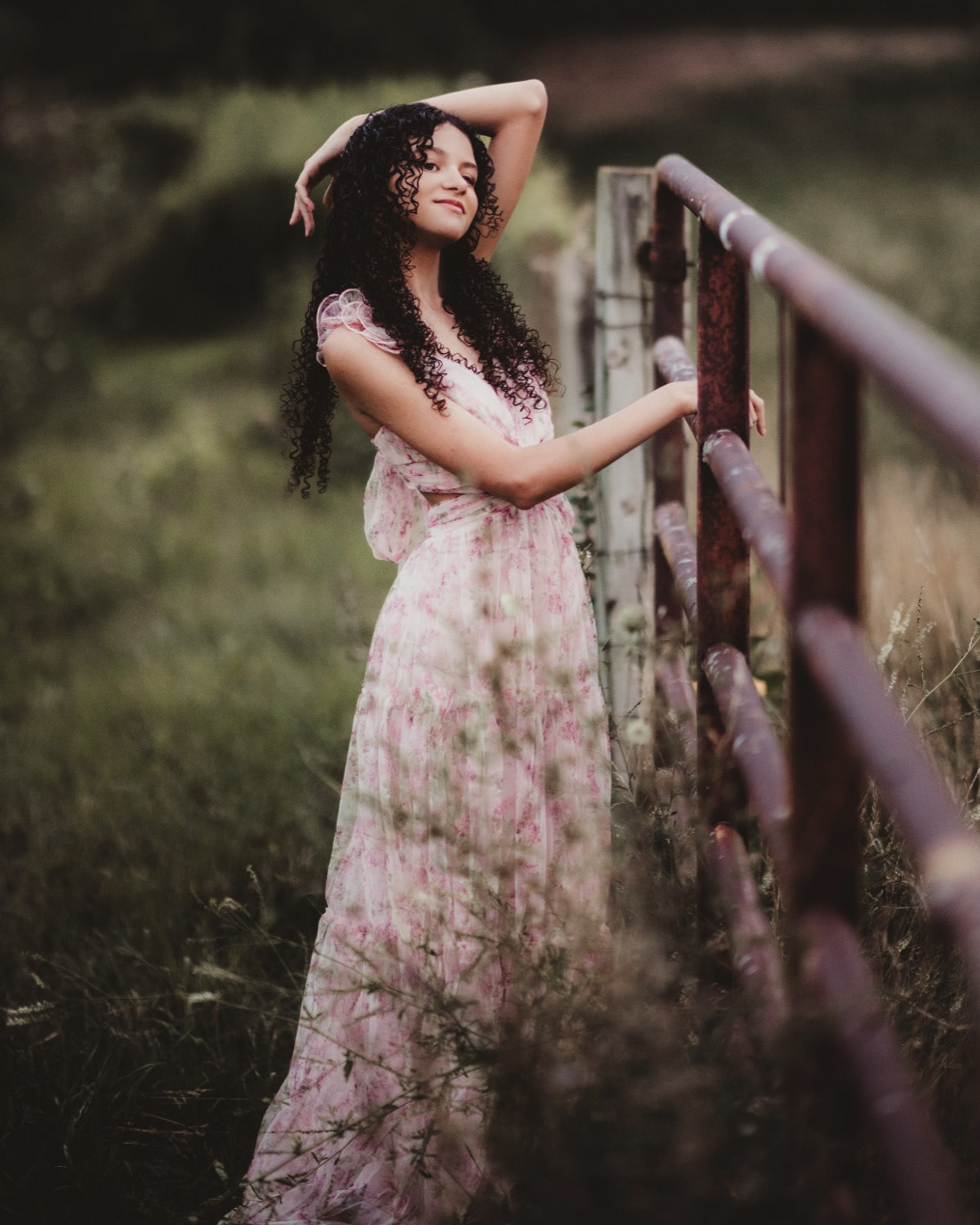
Desaturate Background

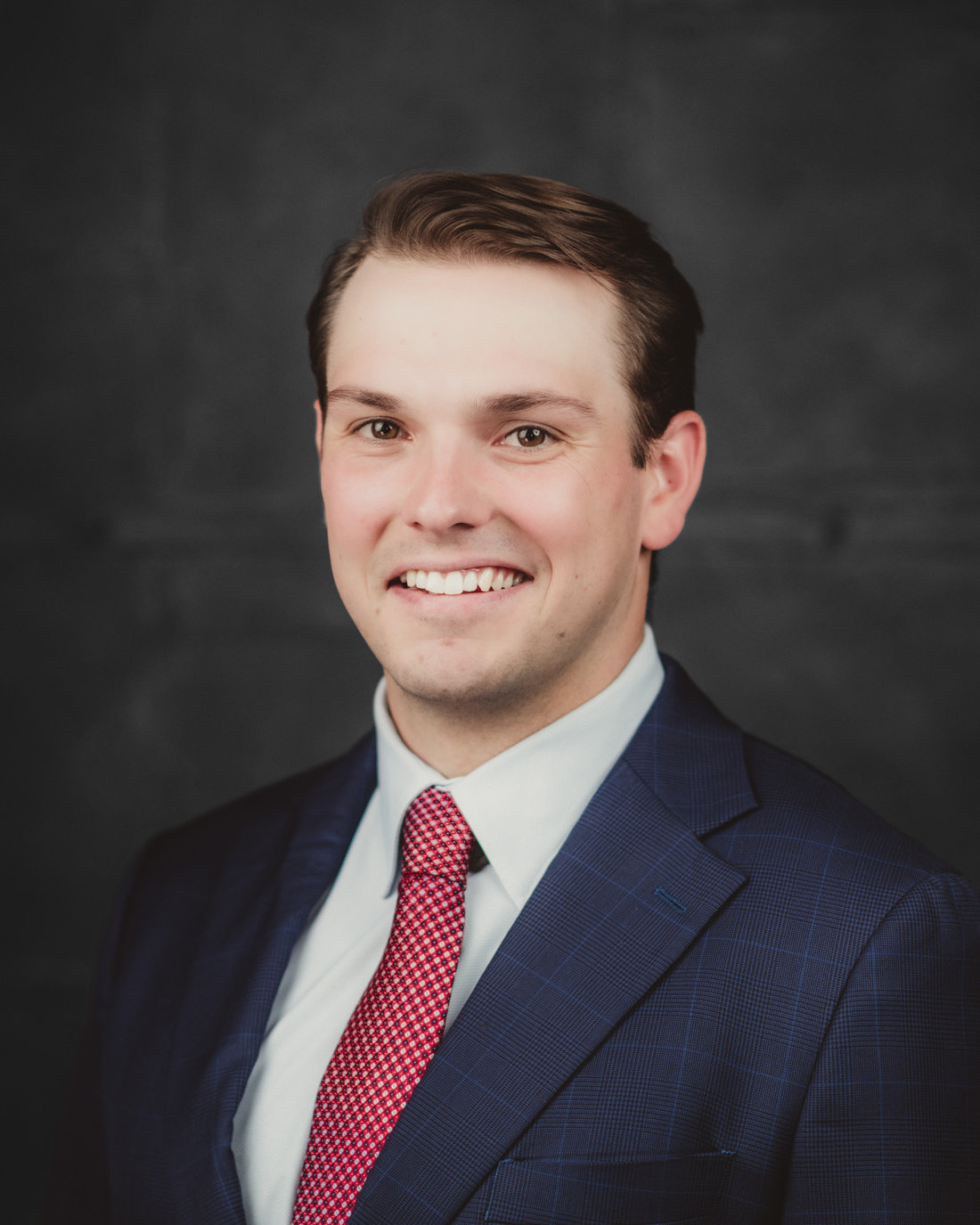
Frequency Separation


Finishing Polish


More Examples
A Closer Look
Frequency Separation
Finishing Polish

Sharpen Up

Sharpen Up
Take a peek inside
Start Here & Set the Base (4 actions)
Auto Portrait finds faces for you (12 actions)
Skin & Tone Fixes (6 actions)
Background & Color (4 actions)
Sharpen (3 actions)
End With a Finishing Action (6 actions)
What’s in your download
Start Here
License and Digital Purchases
Actions
Getting the Most from Your Actions
Six sections in Image Enhancer 3
Make sure it fits
your workflow
Photoshop 2025 or newer for Auto Portrait
Flatten the image first
Your photographs
Make the finish your own
Prepare a working copy
Play one action
Adjust the finish
Need a hand?
Questions about Image Enhancer 3?
What is Image Enhancer 3?
What is Auto Portrait?
What do I need for Auto Portrait?
What does the download include?
What happened to Sharpen Up, Finishing Polish and Frequency Separation?
How do I install the actions?
What do Paint on and Paint off mean?
Will every action keep my layers?
Will this work in Lightroom?
Are there earlier Image Enhancer sets?
What if an action stops?
Bring Image Enhancer 3 to your next edit!
Refund Policy
Digital purchases are refundable before the download link has been accessed. Automated security scans or link previews don’t count as accessing it. Once the download link has been accessed, the purchase is final under our change-of-mind policy, and consumers in the EU or UK keep their 14-day cancellation right. Bought the same product twice? Contact us and we’ll refund the duplicate, even if you’ve downloaded it. To request a refund, or if files are missing, damaged or don’t match the description, contact [email protected]. This policy does not limit your rights under applicable law. Read our full Return & Refund Policy.
Terms & Conditions
- Agreement and Acceptance
These Terms & Conditions constitute the entire agreement between Twig & Olive Photography LLC (“we,” “us,” or “our”) and the Purchaser (“you” or “your”), as identified on the Bill of Sale, and supersede any prior oral or written agreements. By purchasing any Photoshop Actions, Lightroom Presets, ACR Settings, Photography Education Courses, Guides, Templates, Marketing Materials, or Business Documents (the “Products”), you agree to these Terms & Conditions. If any provision of these Terms & Conditions is deemed invalid or unenforceable by a court of law, the remaining provisions will remain valid and enforceable. - Copyright and Ownership
All Products are copyrighted and owned by Twig & Olive Photography LLC. We retain all copyrights, moral rights, and intellectual property rights, including those not explicitly granted in this agreement. All instructional content and related materials are protected indefinitely. No ownership rights are transferred to you. - Permitted Uses
- You may use the Products in the production of personal and/or commercial works.
- Each purchase includes a single-use license for one individual or one business entity only.
- Prohibited Uses
- You may not resell, redistribute, share, mimic, reproduce (in whole or in part), or disseminate the Products in any way to any third party.
- Sharing Products with individuals outside your business or transferring licenses is strictly prohibited.
- Refund Policy
Digital purchases are refundable before the download link has been accessed. Automated security scans or link previews don’t count as accessing it. Once the download link has been accessed, the purchase is final under our change-of-mind policy, and consumers in the EU or UK keep their 14-day cancellation right. Bought the same product twice? Contact us and we’ll refund the duplicate, even if you’ve downloaded it. To request a refund, or if files are missing, damaged or don’t match the description, contact [email protected]. This policy does not limit your rights under applicable law. Read our full Return & Refund Policy.
- Breach of Terms
If you violate these Terms & Conditions, it will result in irreparable harm to Twig & Olive Photography LLC, for which monetary damages may be insufficient. In such cases, we are entitled to seek injunctive relief (court orders) to enforce compliance with these Terms. If we prevail in legal action, we may recover reasonable costs, compensatory and punitive damages, and attorneys’ fees from you. - Dispute Resolution
Any disputes arising from these Terms & Conditions will be resolved through binding arbitration in accordance with Chapter 788 of the Wisconsin Statutes.- A panel of three arbiters will be selected: one by each party, and a third by agreement of the party-appointed arbiters.
- Arbitration will take place in Dane County, Wisconsin.
- The arbiters’ decision will be final and binding on all parties.
- Governing Law
These Terms & Conditions are governed by the laws of the State of Wisconsin, without regard to its conflict of law principles. - Acknowledgment of Terms
By completing your purchase, you acknowledge that you have read, understood, and agreed to these Terms & Conditions in their entirety.
Reviews (0)
Only logged in customers who have purchased this product may leave a review.

Reviews
There are no reviews yet.