

Your look, from the first edit to the final detail
Lightroom & Camera Raw Presets
Build the color and feel of a photograph with develop presets, then refine the details with brushes and adaptive tools. Start with the part of your edit you want help with.
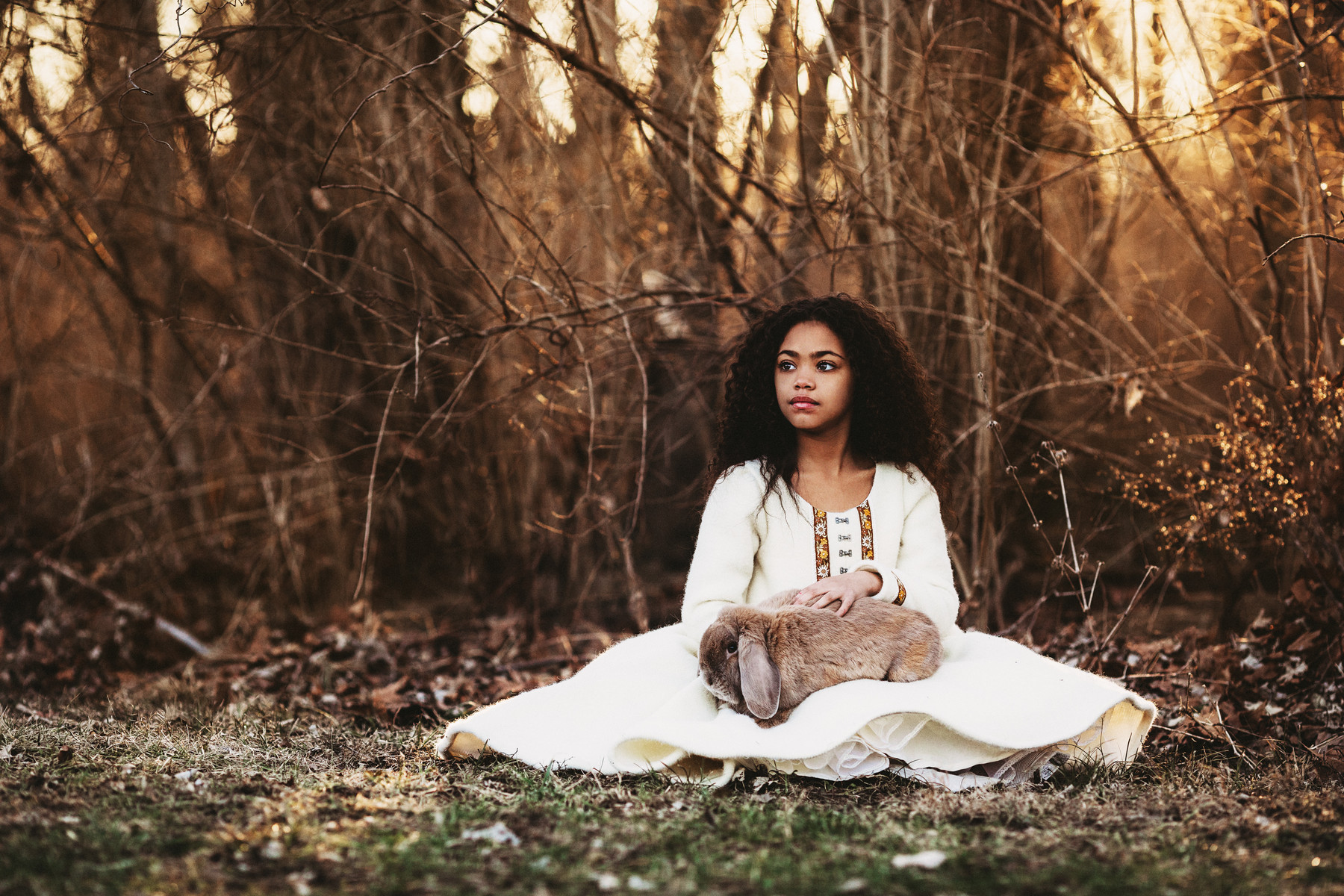
Find what you need
Search by collection, tool, or the part of your edit you want to work on.
In this guide
Search opens the full product results page. You can also browse the topics below.
Find your look
Develop Presets
Warm, crisp, soft, or matte. A develop preset sets the overall color, contrast, and mood. These four examples give you a feel for different collections. Explore any look you like, then browse the full range below.
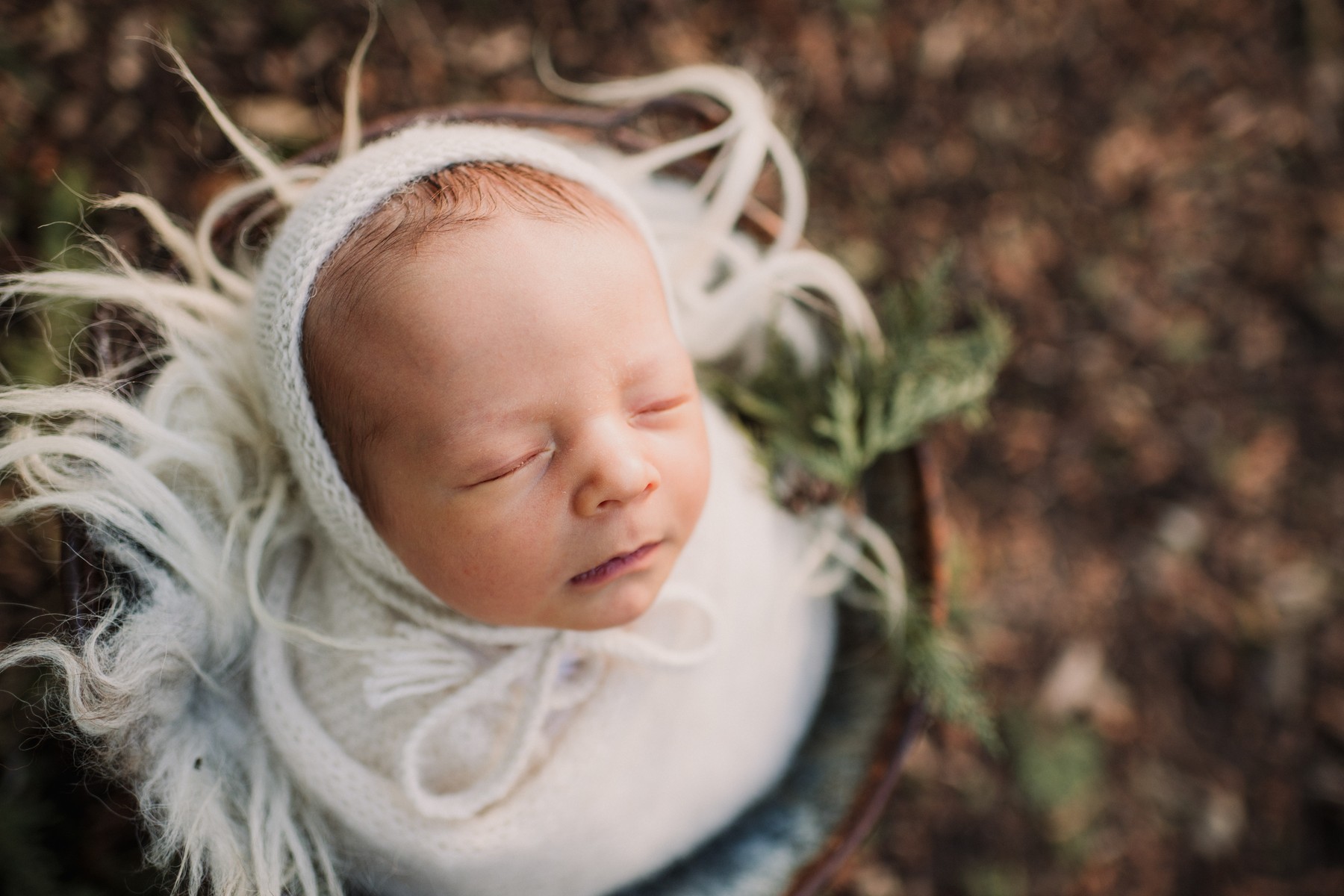
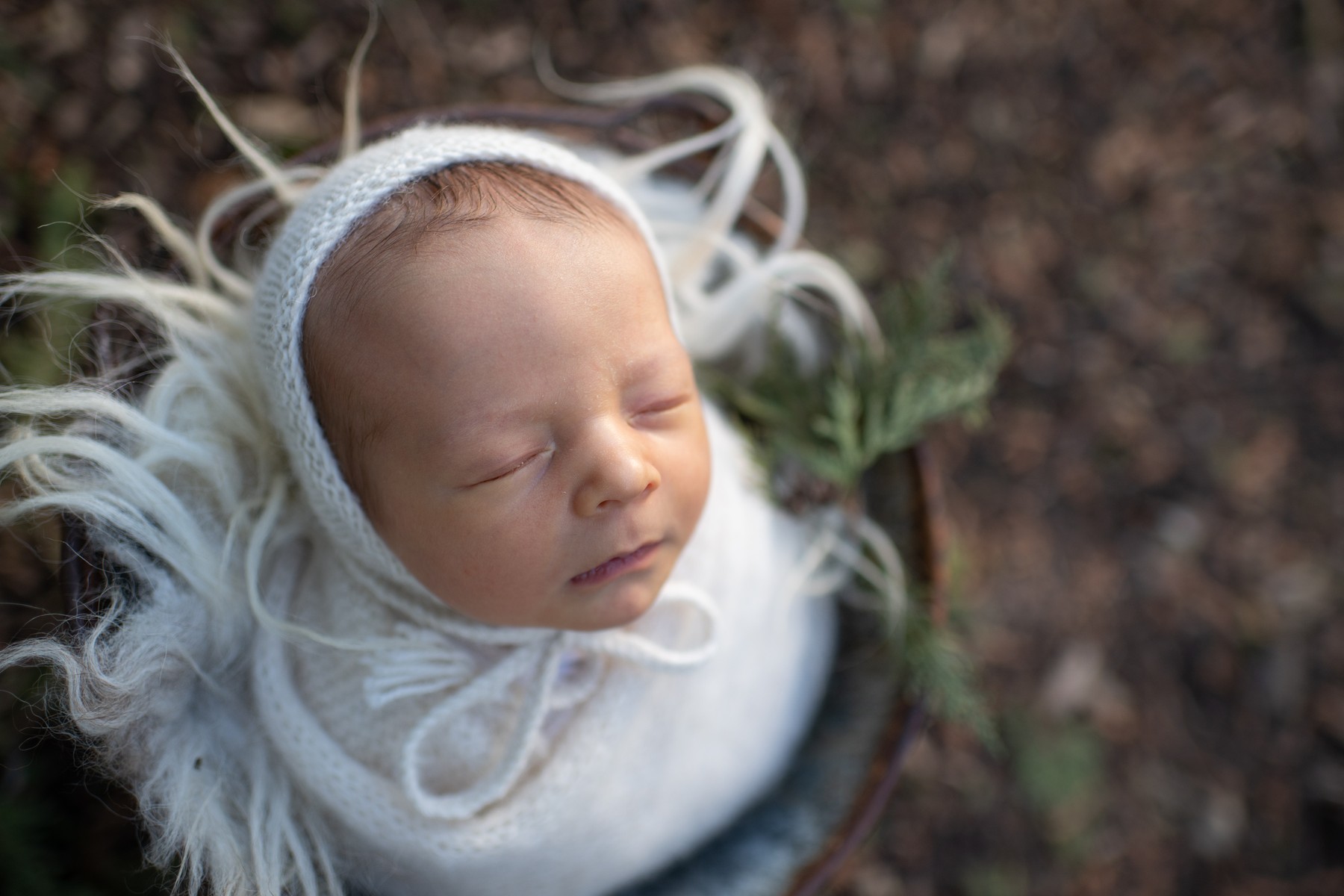
Soft color and a muted matte finish. Compare the Citrus example here, then see how the other looks work across different photographs.
soft matte newborn color look
View the photograph straight out of the camera
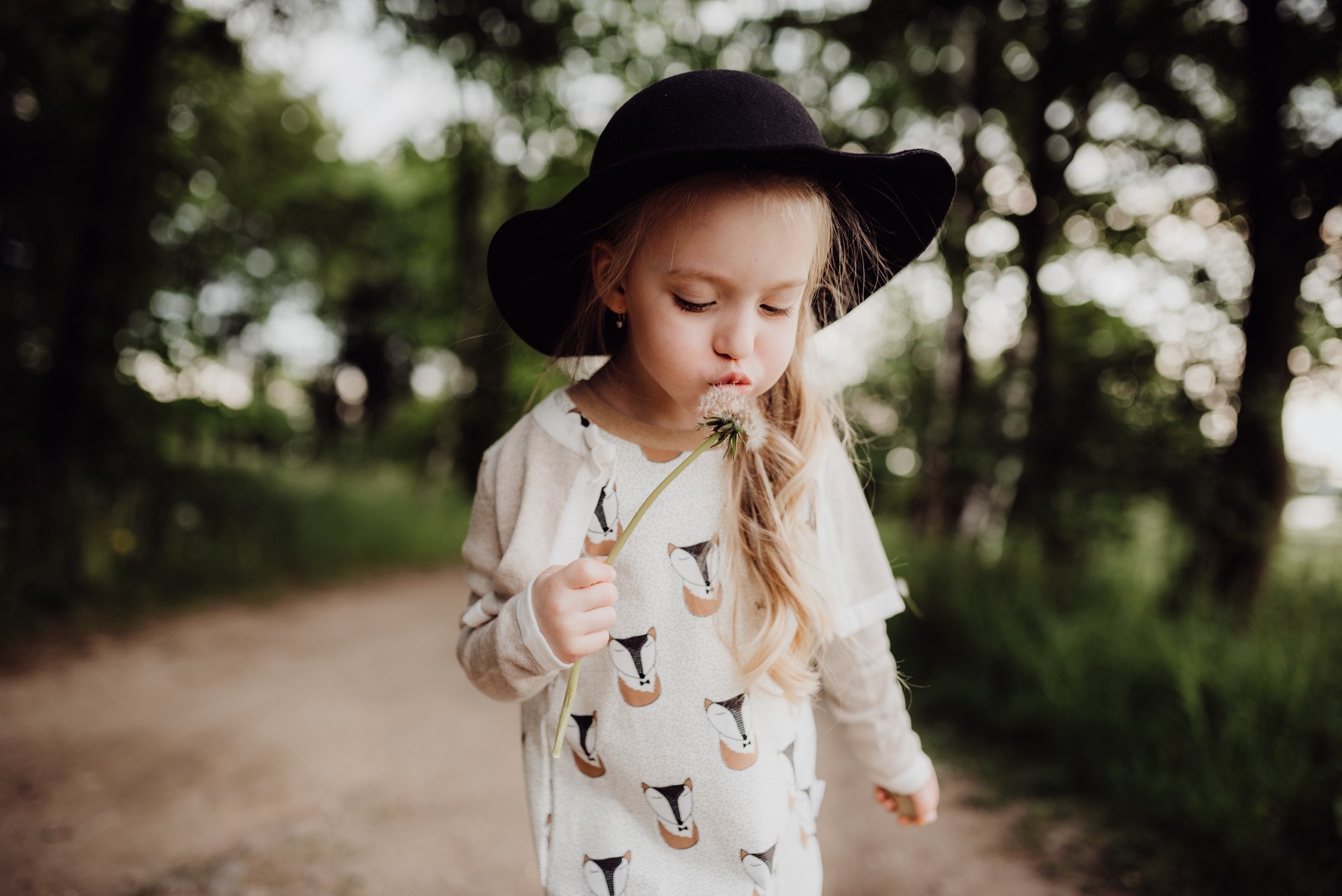
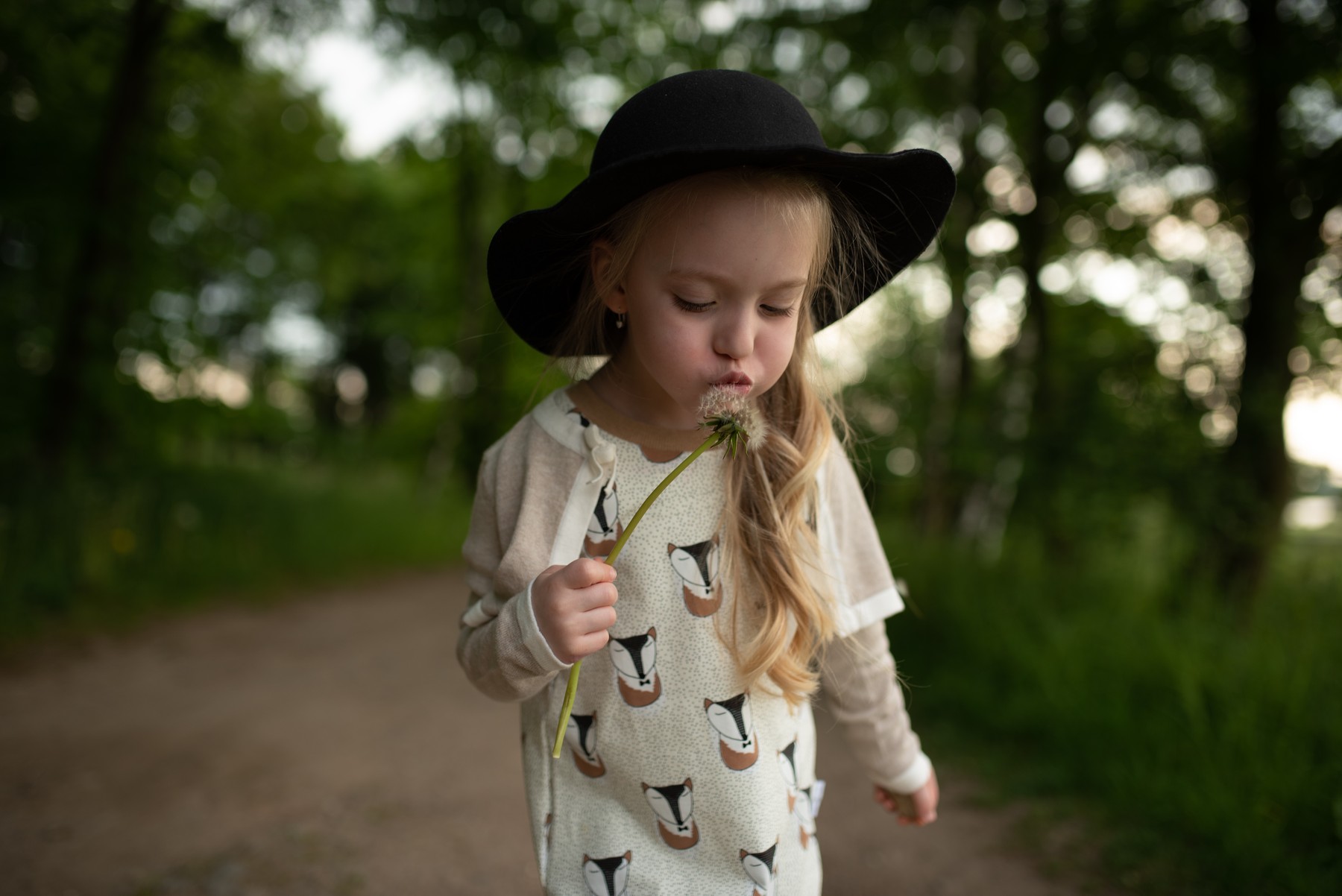
Rich color and an earthy feel. The London example is one starting point. Explore the collection to see the range.
rich earthy warm color look
View the photograph before editing
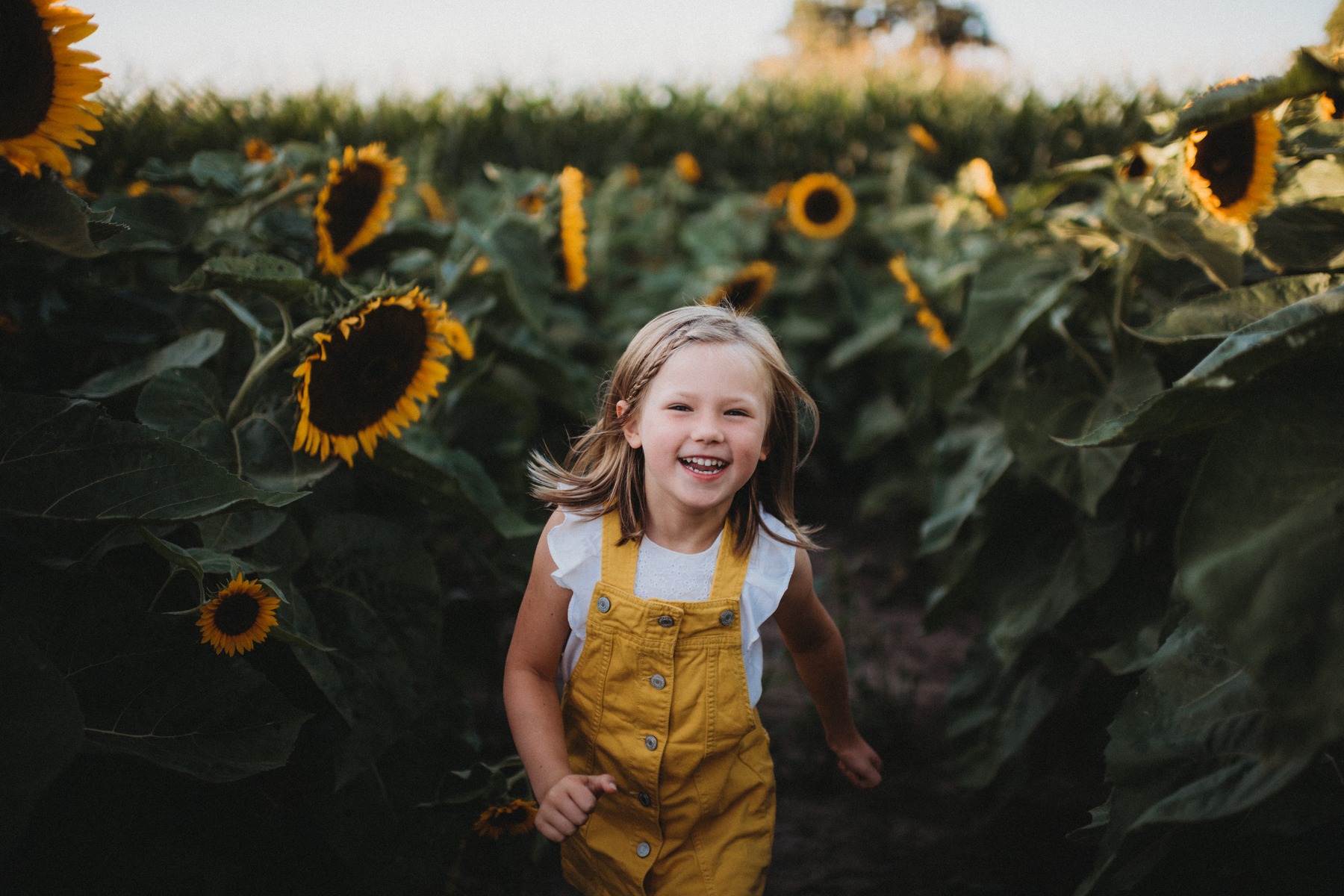
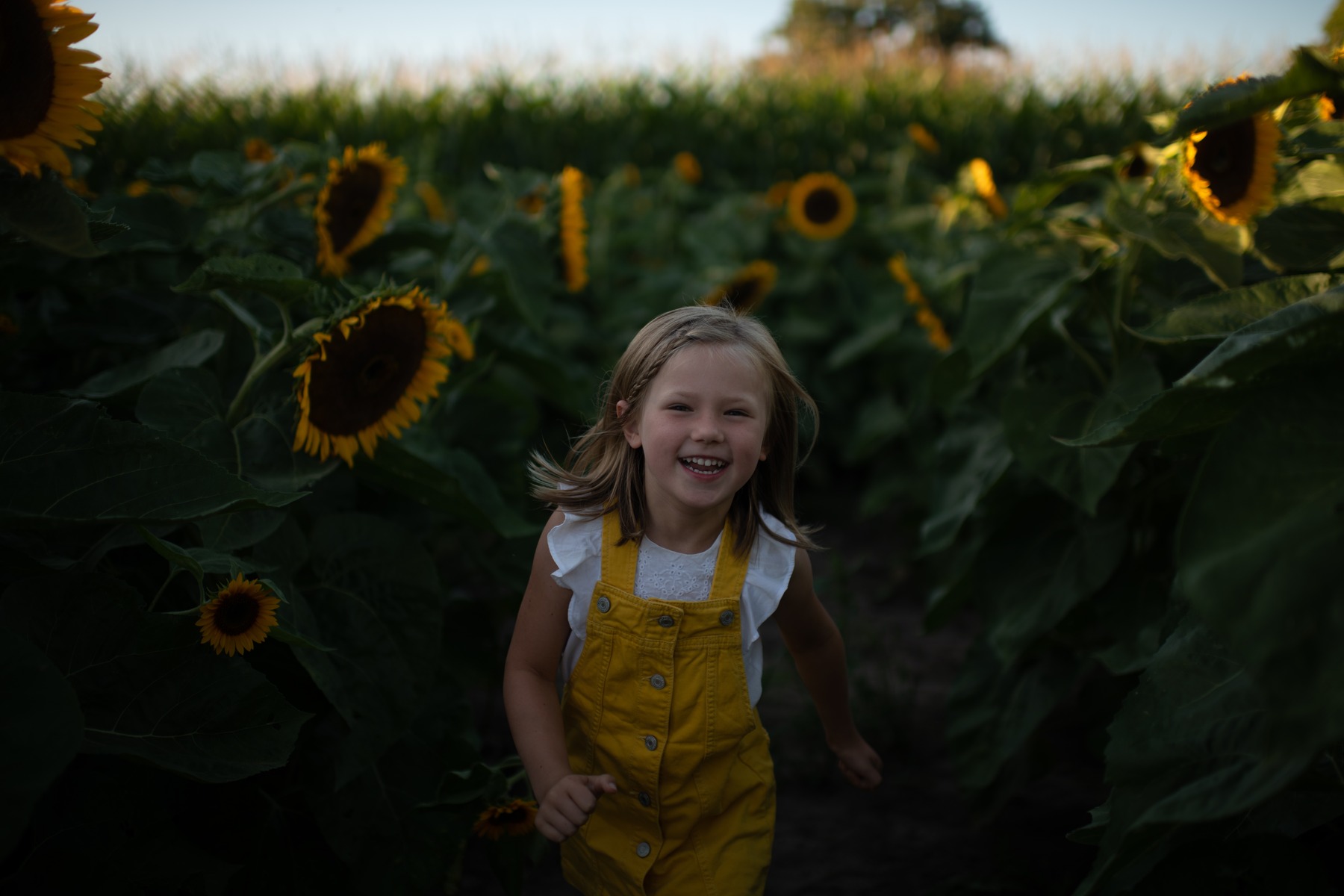
Warm, velvety color for autumn light and beyond. Compare the Hot Toddy example, then see more photographs from the collection.
warm autumn velvety color look
View the photograph straight out of the camera
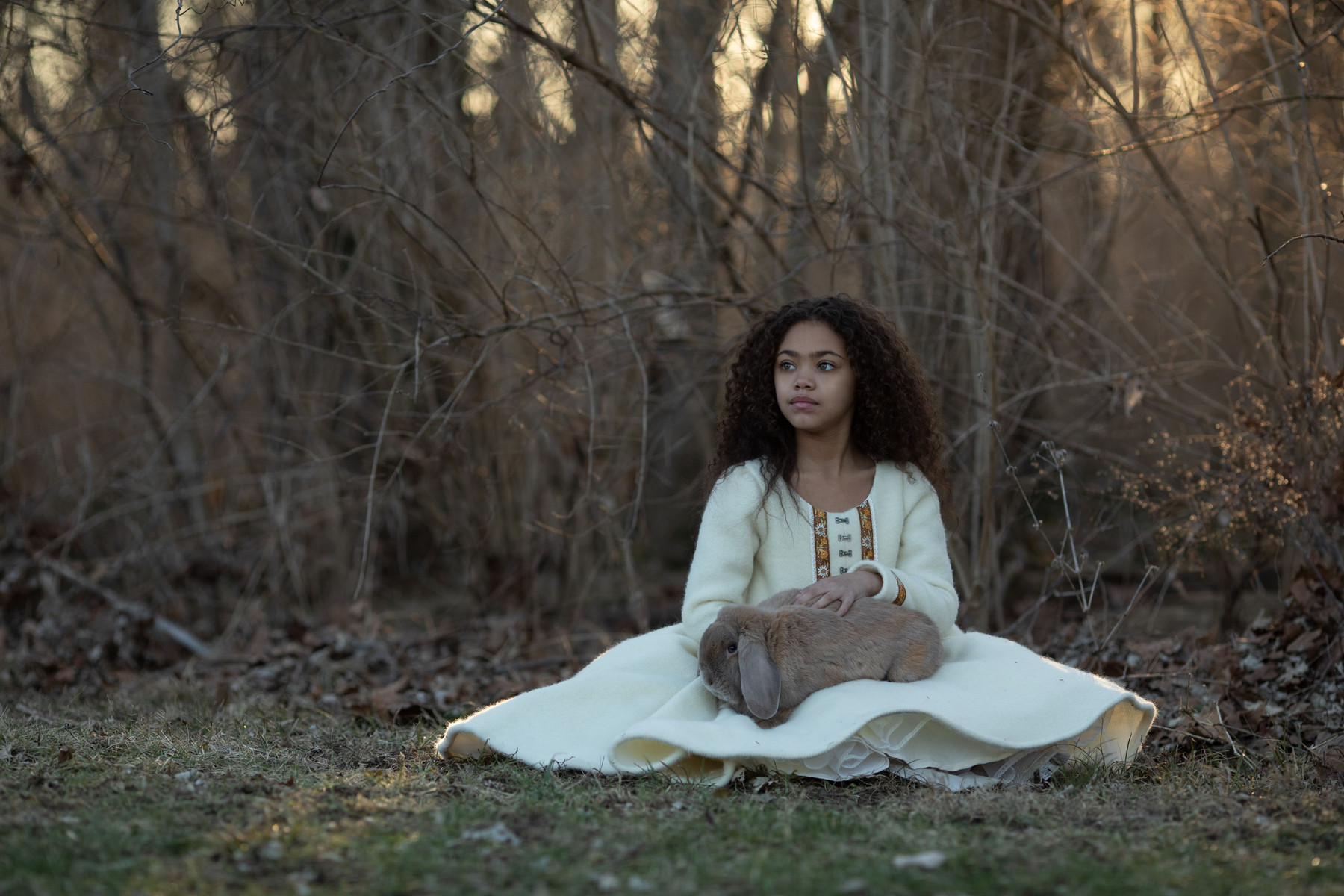
Color with depth, from warm light to quieter tones. Compare the Citrine example, then explore the other looks in the collection.
color depth warm light look
View the photograph straight out of the camera
Find the collection that feels like you
These four collections are a small part of the range. Browse more looks, subjects, and lighting situations, or explore finishing tools for the details. Each product has its own examples and included files.
Working in Photoshop instead? Explore Photoshop Look Actions for the overall color and feel of your edit.
Work on the details
Finishing in Lightroom & Camera Raw
The overall look is in place. Now brighten a face, soften skin, or bring attention to your subject. Brushes let you paint an adjustment where you want it. Adaptive presets use Lightroom Classic masks to target parts of the photograph.
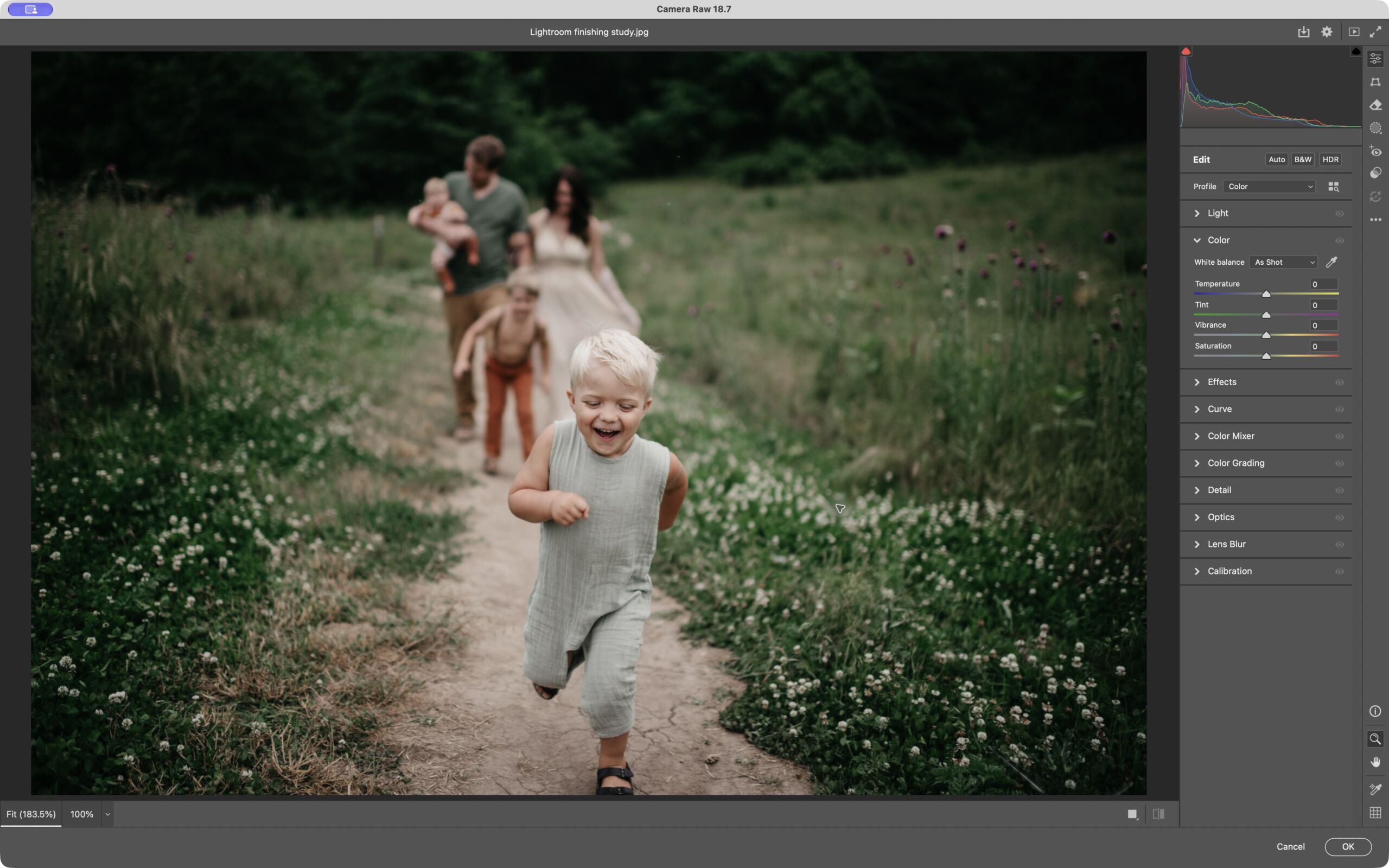
Keep control of the finish
Use the tool that fits the job, inspect where it applies, and adjust the strength. Your photograph decides how much it needs.
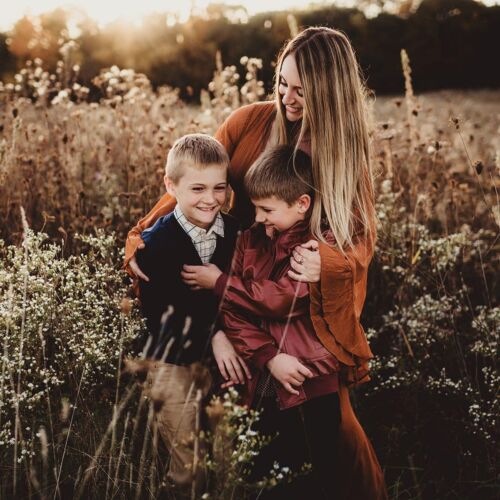
Target subjects, skies, and backgrounds with adaptive finishing presets in Lightroom Classic. Inspect the generated mask, then refine the result for your photograph.
adaptive masks subject sky background finishing
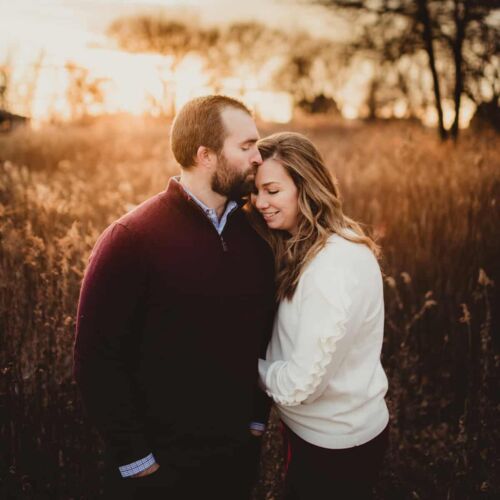
Paint local light and color adjustments into the areas that need them, with brushes for Lightroom Classic and Camera Raw.
brushes local light color finishing
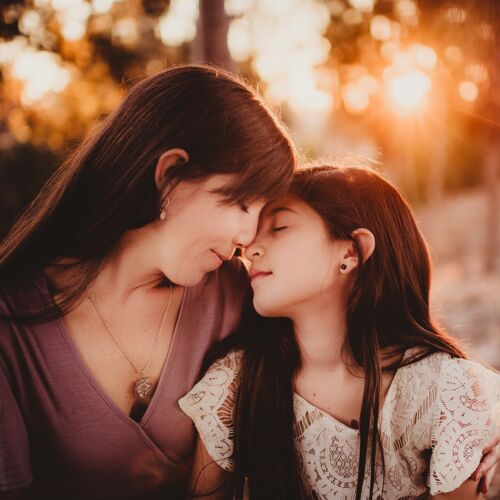
Work on redness, under-eye shadows, skin softness, and small tonal adjustments with brushes for Lightroom Classic and Camera Raw.
skin redness eyes brushes retouch finishing
Working in Photoshop? See Finishing in Photoshop for actions that work with layers and masks.
More of the tools you use
Editing Bundles
Choose a library of looks, a set of finishing tools, or a broader kit for working across apps. Each bundle page lists its included products, so you can compare it with what you already own.
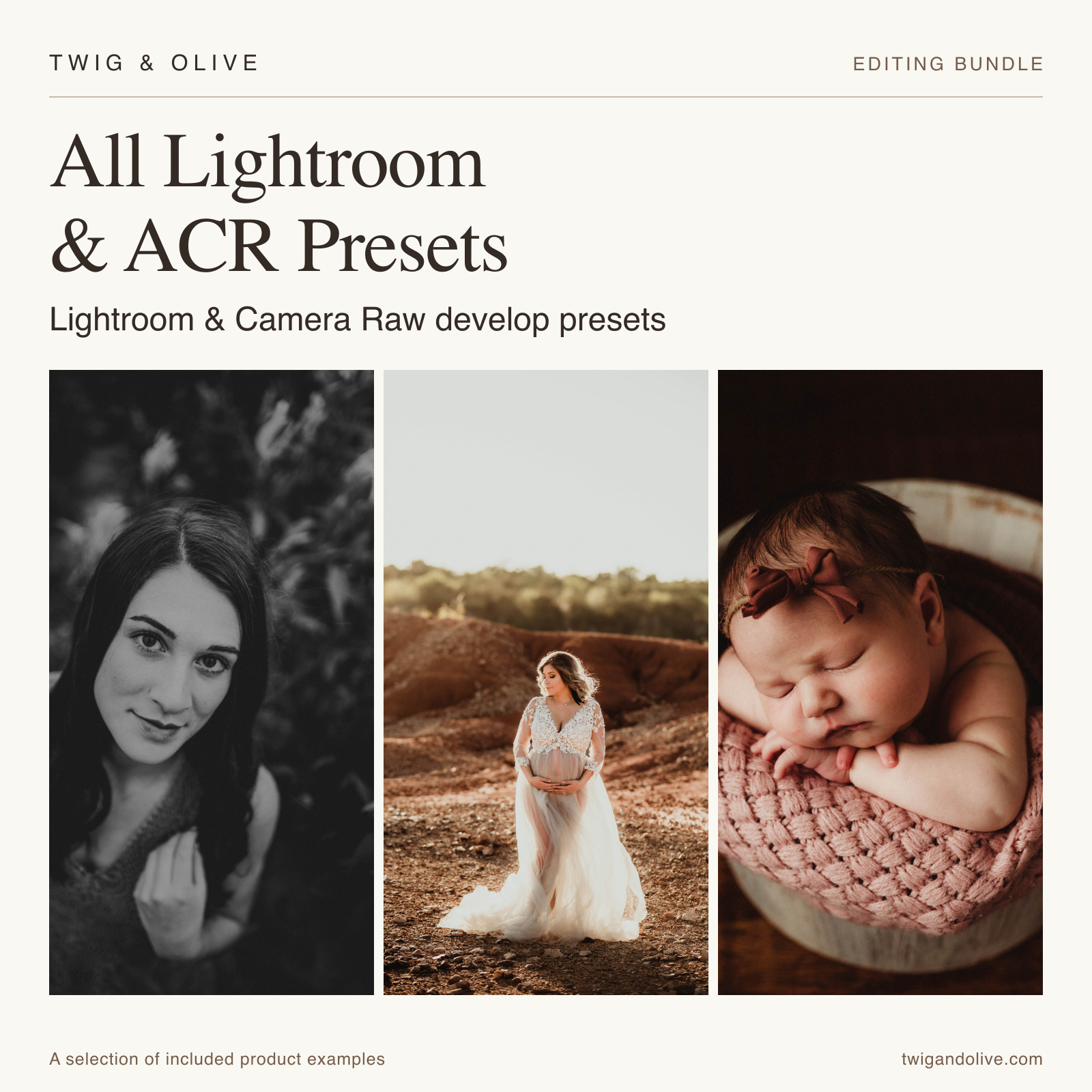
For a range of whole-image looks in Lightroom and Camera Raw. Build out your develop presets with this library. Brushes and adaptive tools are not included.
bundle bundles collections package lrall
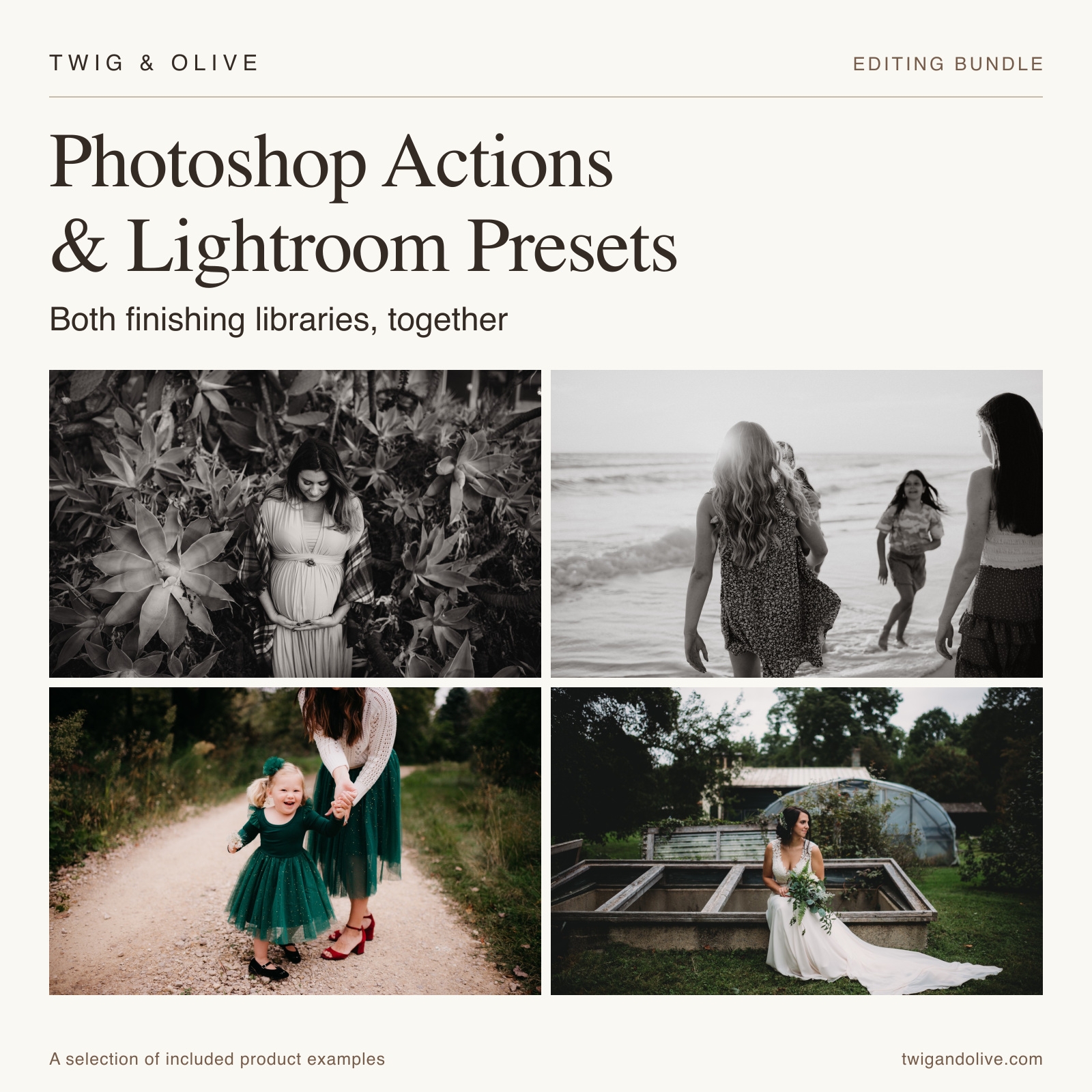
For photographers who build their looks in both apps. The two libraries come together, with separate preset and action files.
bundle bundles collections package mixed
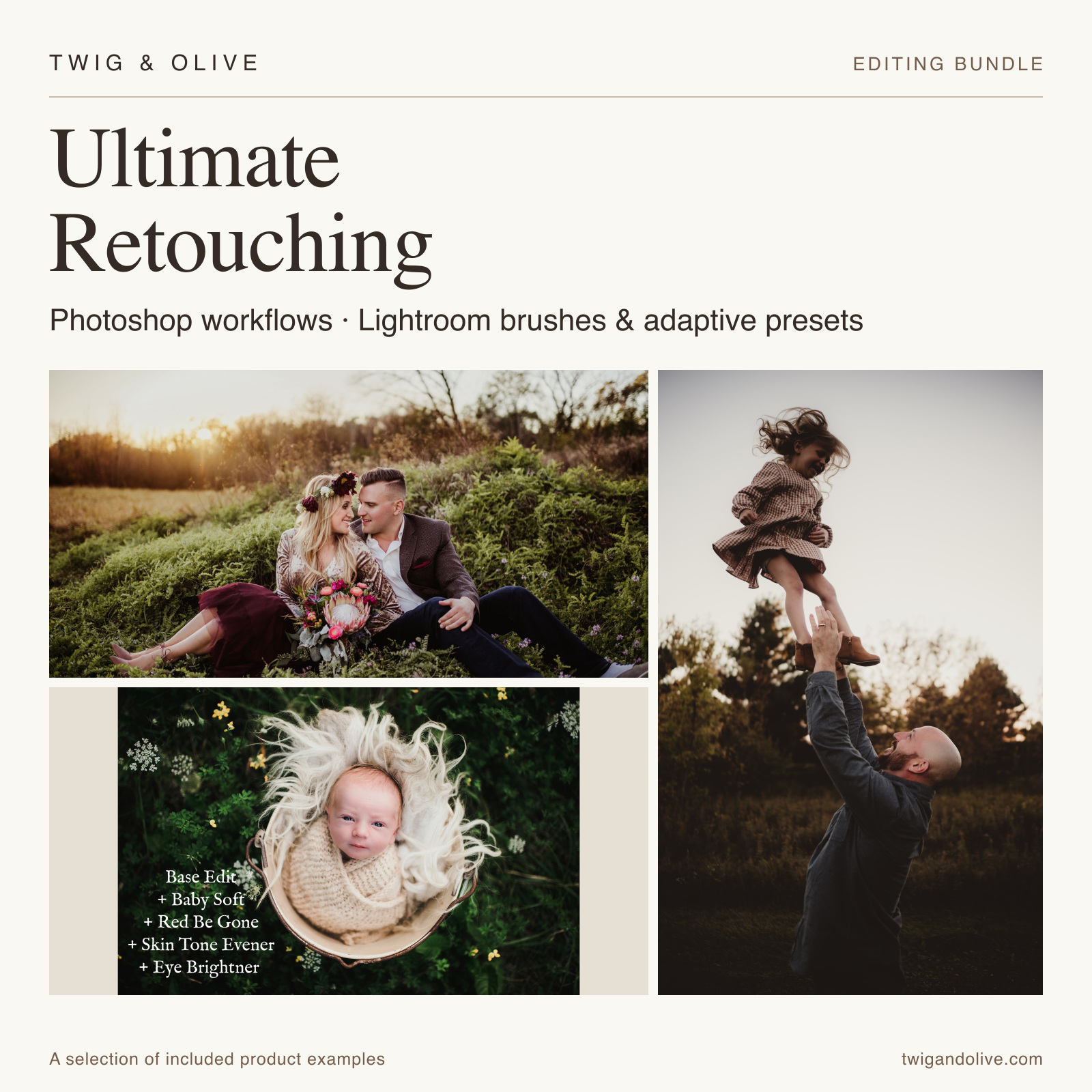
Photoshop workflow actions, Lightroom and Camera Raw brushes, and adaptive tools for the finishing work. The actions need Photoshop, and each item has its own app requirements.
bundle bundles collections package ultimate
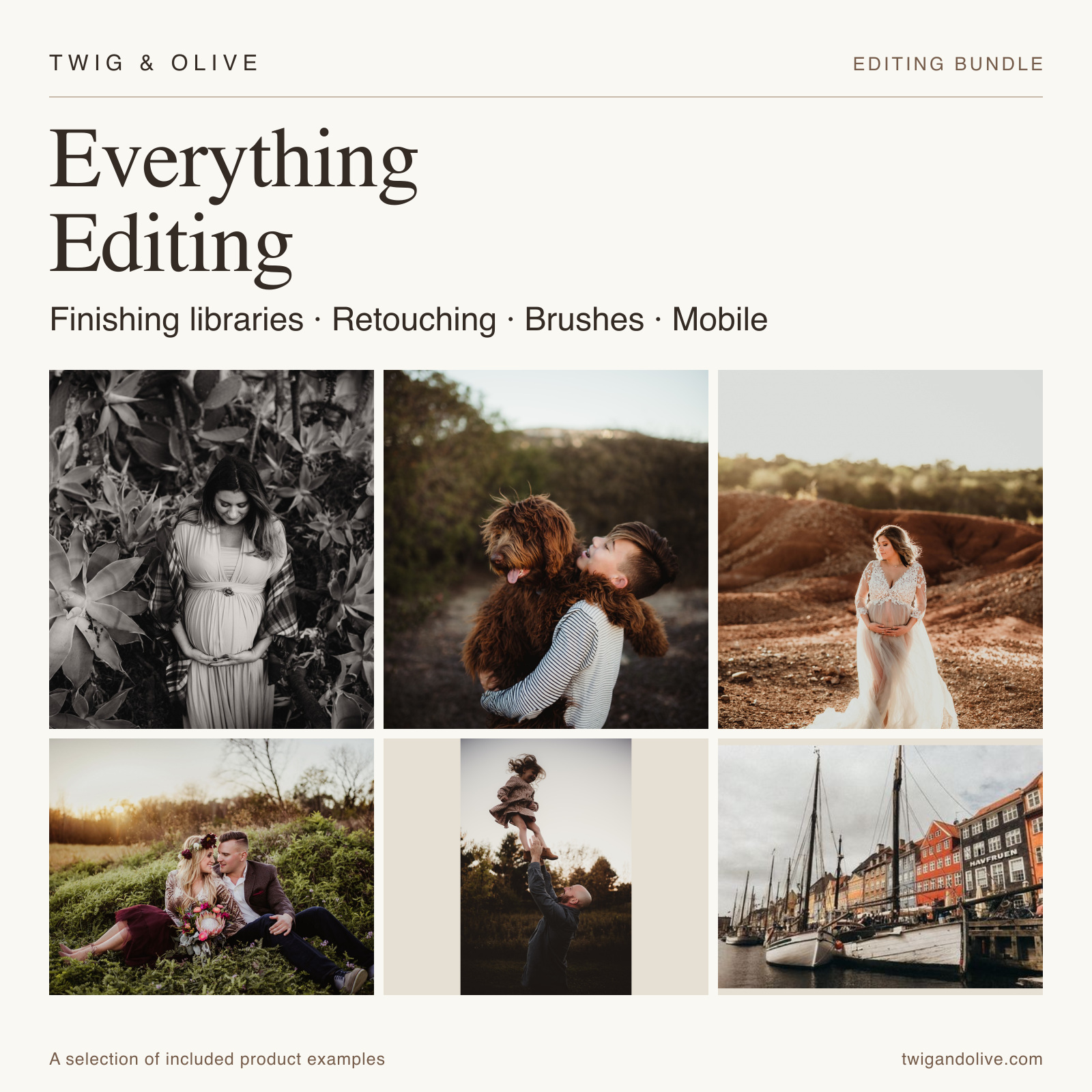
Look collections, workflow actions, brushes, adaptive tools, and mobile presets in one bundle. Each item keeps its own app requirements.
bundle bundles collections package everything
A little guidance
Questions before you choose
A little help with formats, finishing tools, and getting started.
Where should I start?
If you want to change the overall color and feel, start with Develop Presets. If the photograph already has the look you want and needs work in a few areas, start with Finishing Tools.
Will a preset finish the photograph for me?
It gives you a starting point. Exposure, white balance, and the light you photographed in all affect the result. Adjust the preset to suit the photograph, then use finishing tools where you need more control.
What is the difference between develop presets, brushes, and adaptive presets?
Develop presets shape the overall look. Brushes let you paint adjustments onto selected areas. Our adaptive presets use Lightroom Classic masks for areas such as the subject, sky, or background. They have different installation steps and requirements, so compare the Finishing Tools before choosing.
Will these work in my version of Lightroom or Camera Raw?
Check the exact product before buying. Develop collections, brush sets, and adaptive presets do not all use the same files or support the same apps. Start from our full Lightroom range and check the requirements for the tool you want. If you are unsure, contact us with your app and version.
Can I use Lightroom presets on my phone or tablet?
Current Lightroom apps for iOS and Android can import XMP, DNG, and LRTEMPLATE preset files directly. Before buying, check the collection’s included files. Presets that use camera profiles can show as partially compatible with photos from other cameras. After downloading, unzip the file first, then follow Adobe’s mobile import instructions. Import support does not cover every tool. Lightroom Adaptive Presets require Lightroom Classic, and each brush set lists its supported apps. You can also browse our Mobile Presets.
Will presets sync from Lightroom Classic to my phone?
Lightroom Classic does not sync presets to Lightroom on your phone or tablet. Adobe’s Lightroom desktop sync route uses the separate Lightroom desktop app and an active subscription. You can also import supported preset files directly on your mobile device.
Does a collection include the Photoshop version, too?
A Lightroom collection and any matching Photoshop action collection are separate products unless the listing says otherwise. Photoshop actions use a different workflow. The Photoshop Actions & Lightroom Presets bundle combines both libraries; check its included products before choosing. The Image Enhancer and Skin and Tone brush sets are also separate from the Photoshop workflow actions with the same names.
Should I choose one collection or a bundle?
Start with one collection when you know the look you want. Compare Editing Bundles if you want several collections or a mix of looks and finishing tools. Choose by the included products and apps, rather than the size of the download.
Where are my downloads and installation instructions?
Sign in to My purchases to find your available downloads. Follow the guide supplied with your product, because presets, brushes, and adaptive tools install differently. Product help is there if you get stuck.
Connect with Twig & Olive
Tell us what you edit in and what you want to change. We can help you find the collection or tool that fits.